
Tutorial: Purchasing, Assigning and Managing PER USER Licenses from Microsoft Marketplace
Introduction
The PER USER license is sold directly through the Microsoft Marketplace and is available on a monthly or yearly basis. Payment is handled using the same options supported for Microsoft Azure purchases; for most organizations this is limited to credit card payments.
Every user, that is both Creator and Viewer need a valid license to use the visual. For example, if you have 2 users creating reports with the visual and 10 users who only consume the reports, you need: 2+10=12 user licenses. After you purchase these licenses from the Microsoft Marketplace you need to assign the licenses to each user or user group. This is done at the Microsoft Admin Center.
Before purchasing a PER USER license through the Microsoft Marketplace please read the Considerations below!
Considerations
The PER USER licenses can only be purchased directly by the organization that will use the visual. Purchasing through a distributor or reseller is not supported.
Licenses cannot be transferred or re-assigned between organizations.
It is recommended that the tenant admin completes the purchase (through the Microsoft Marketplace).
When licenses are owned at tenant level (Org licenses), they can be managed and assigned by users with the following roles: Global Admin, License Admin or User Admin.
Currently, the following Power BI environments don’t support PER USER license management or license enforcement:
• Embedded – Publish To Web (public URL) , PaaS embed
• National clouds (depends on general support for transactability in national clouds)
• RS Server (No planned support)
• Exporting (PDF\PPT) using REST API
For unsupported environments a PREMIUM license is required.
The Nova Silva visuals you can download from the Marketplace are Certified Power BI visuals that meet certain specified code requirements that the Microsoft Power BI team has tested and approved. The tests are designed to check that the visual doesn’t access external services or resources. Our visuals are updated automatically when a new version is available.
Purchasing PER USER Licenses
To purchase a Nova Silva visual through the Microsoft Marketplace, click Buy now and complete the Checkout path as outlined below:
- Go to the Microsoft Marketplace.
- Select the Nova Silva visual you want to purchase.
- (Optional) Open the Plans + Pricing tab to review the available plans and pricing.
- Click the Buy now button to begin the checkout process.
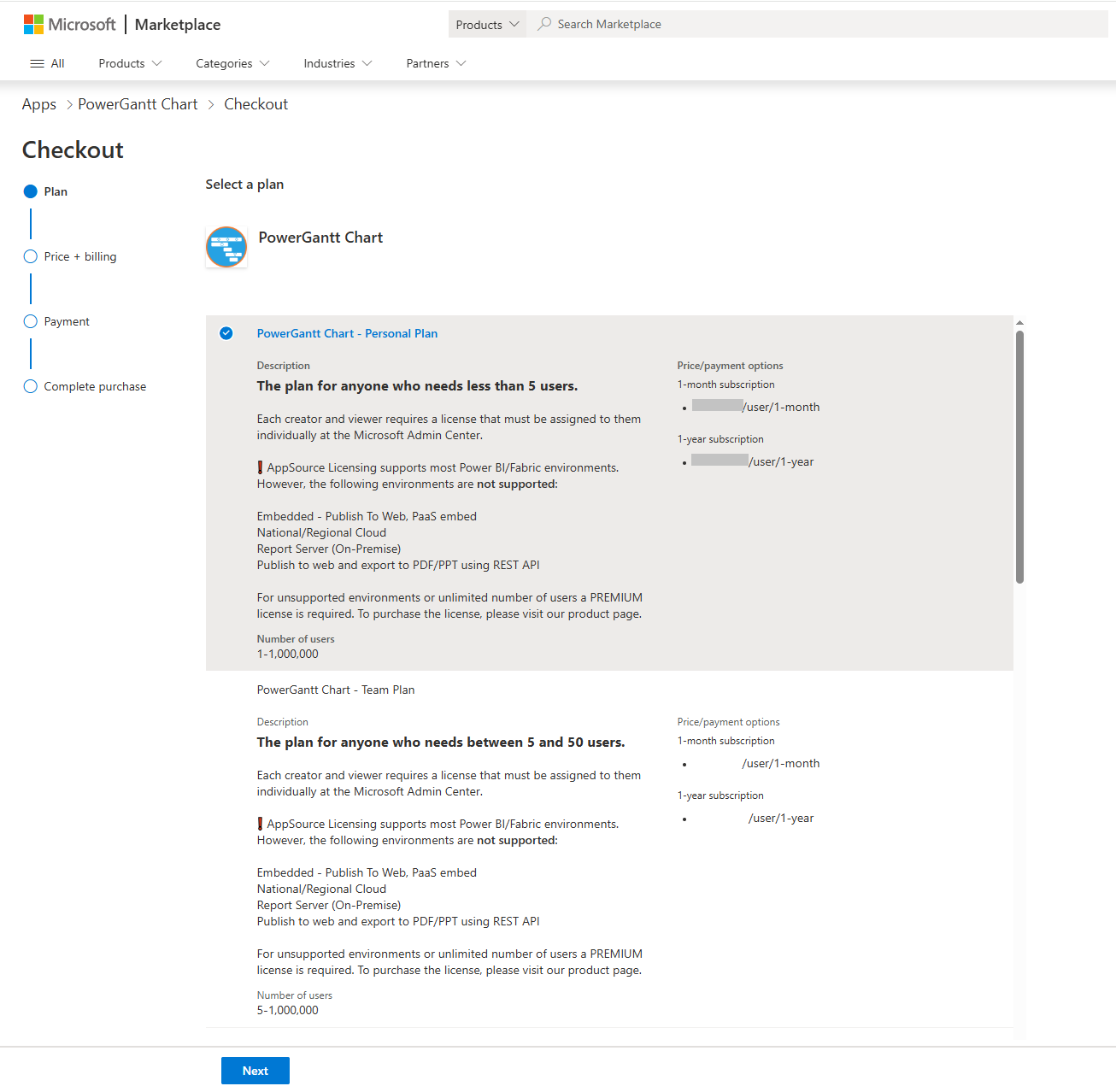
- Checkout – Plan
- Select a plan: Personal, Team, Departmental, Organizational or Corporate.
- Click Next button.
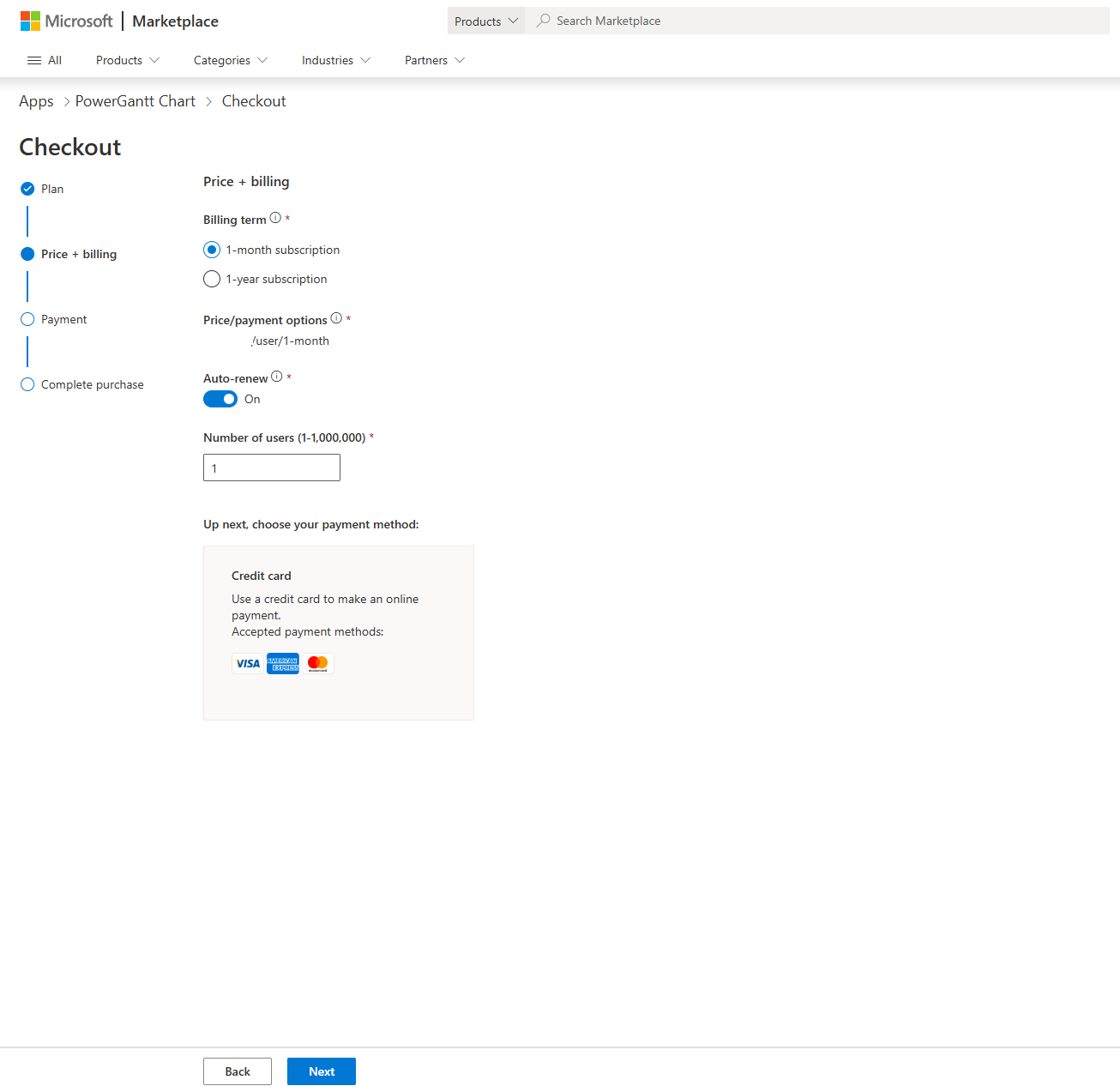
- Checkout – Price + billing
- Choose a Billing term: 1-month or 1-year subscription.
- Set Recurring billing: by default auto-renewal is On.
- Enter the Number of users (both Creators and Viewers are counted as Users).
- Up next, choose your payment method: (you can pay with a credit card, prepaid cards are not supported).
- Click Next button.
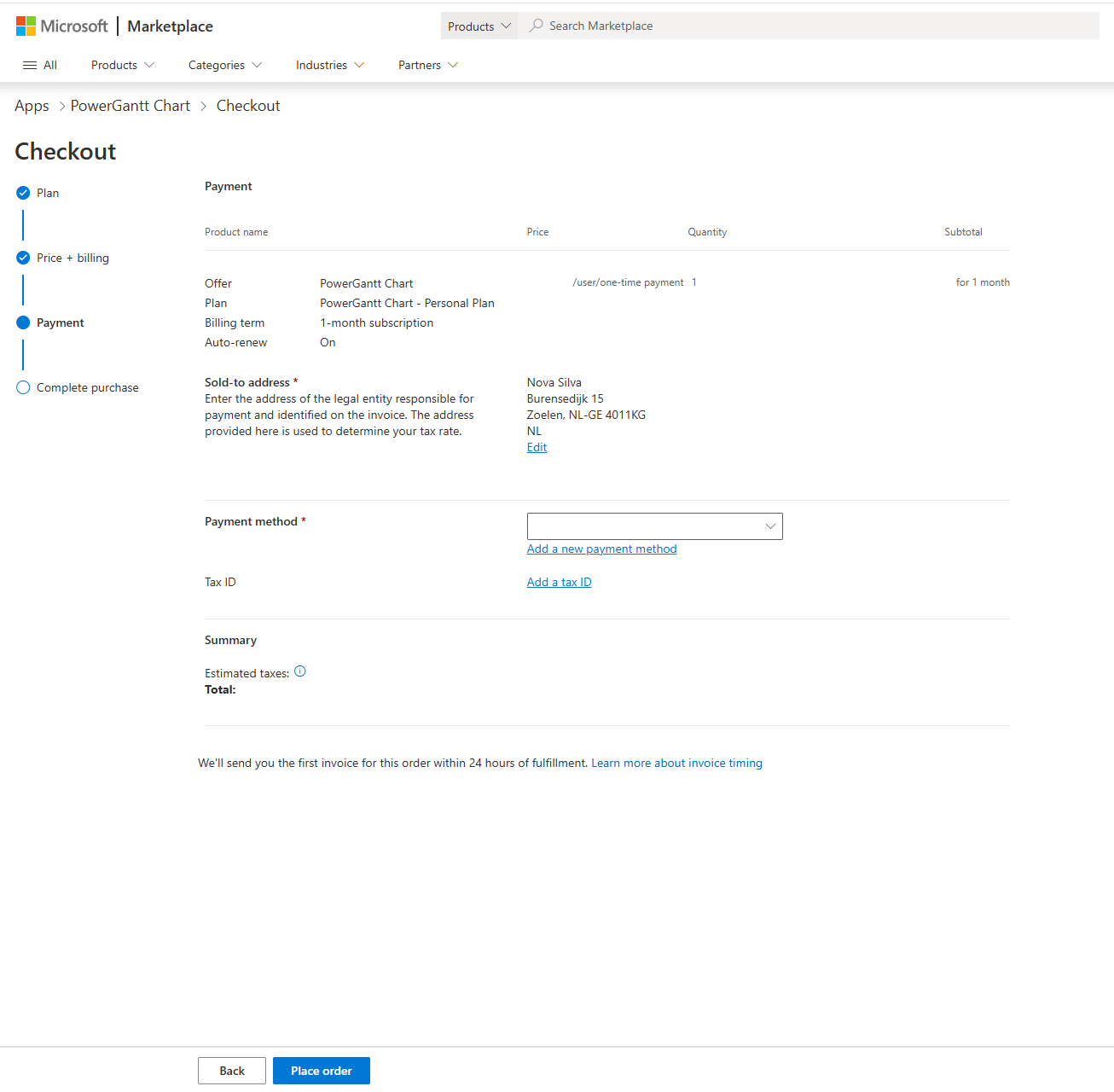
- Checkout – Payment
- Review your order details (you can edit Sold to address, if needed).
- Verify the Payment method.
- (Optional) click Add tax ID, if applicable.
- Click Place order button to complete the purchase.
You can add a purchase number to the billing profile of your order. At the final stage of your checkout, select Add new under the billing profile and add the Purchase order number in the field.
After you complete your purchase, you can find your receipt in the Microsoft 365 admin center by clicking Download invoice under Bills & payments > Invoices.
Billing and Global admins can also pay by invoice if that’s set up for your company. Read more about setting payment methods. Follow these steps to see your billing profile.
Assigning PER USER Licenses
After the purchase through Microsoft Marketplace is complete and successful, to activate the licenses the buyer (owner) will need to assign the licenses to the users.
If the tenant admin owns the licenses (Org licenses), then any of the license admins (Global Admin, License Admin or User Admin) can manage the licenses.
However, if the subscription owner is non-admin, he will have access to the portal and only he can manage the subscription and licenses. The tenant admin can see all subscriptions purchased under the tenant account, including the subscriptions purchased by non-admins. You can assign licenses to users in the same tenant that you purchased subscription under regardless of the location.
- Go to admin.microsoft.com and select the Licenses link under the Billing node from the menu (a list of visuals appears).
- Select the Nova Silva visual you want to assign. If it isn’t visible, make sure no filters are currently applied that may be hiding it.
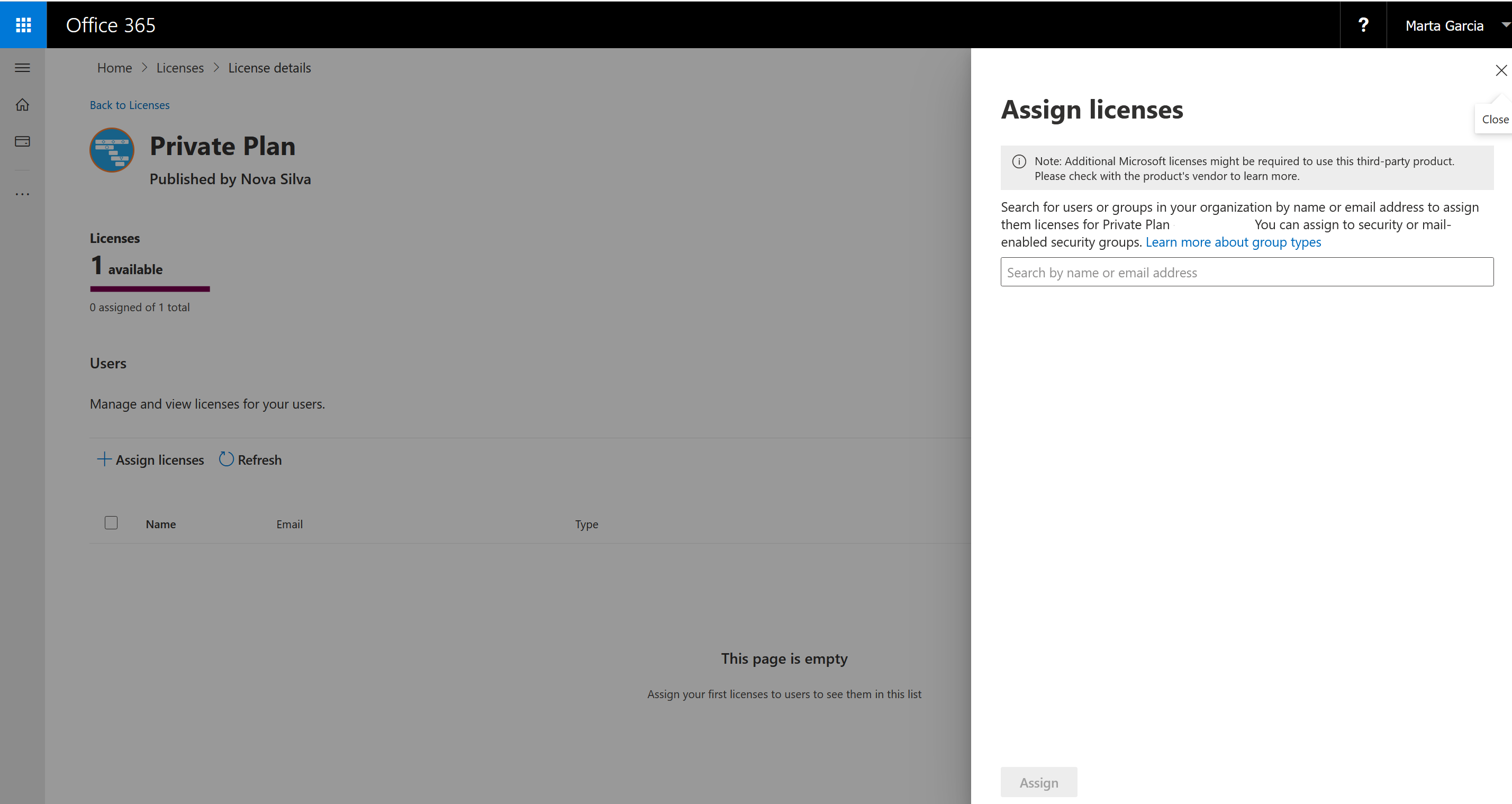
- In the next page, click + Assign licenses.
- Search for the user by name or email address.
- Select the user(s) you want to assign the licenses to.
- Click Assign button.
Buyers get a license assigned to them automatically. It can take up to five minutes from the time of purchase for the license to take effect. If you want to add more users or update your subscription, go to the admin center. You can assign the license to the users directly by providing name or email, or through Microsoft Groups either Mail-enabled or Security Group.
If the owner of the subscription leaves the company, tenant admin purchases (typically known as organizational purchases) continue to work as-is. If the owner was an admin, any license admin (Global Admin, License Admin, User Admin) can continue to manage the licenses. The subscriptions can be managed by any Billing Admin or Global Admin with access to the billing account used for purchase.
If the owner wasn’t an admin, the license will continue to work as long as the subscription is active. However, the subscription can’t be managed by anyone else.
After you assign a license in the Microsoft 365 Admin Center, the license should be available within a few minutes.
If you were just assigned a license, refresh the report to activate it by doing one of the following:
- If you’re using the licensed visual in the Power BI Service, refresh the report by hitting F5.
- If you’re using the licensed visual in the Power BI Desktop, close and reopen it.
If, after you refresh, the license is still not available, wait a while and try again. It could take up to 30 minutes. If it takes longer than 24 hours, please contact Microsoft’s support team.
Managing PER USER Licenses
Access the information about the licenses you purchased and manage it in Your Products under the Billing node in the Microsoft 365 admin center.
Check the visual to activate the options or click the icons (Buy licenses or More actions). Here you can Buy licenses, Remove licenses, View billing profile, Edit recurring billing (to turn on/ off recurring bill) and Cancel subscription.
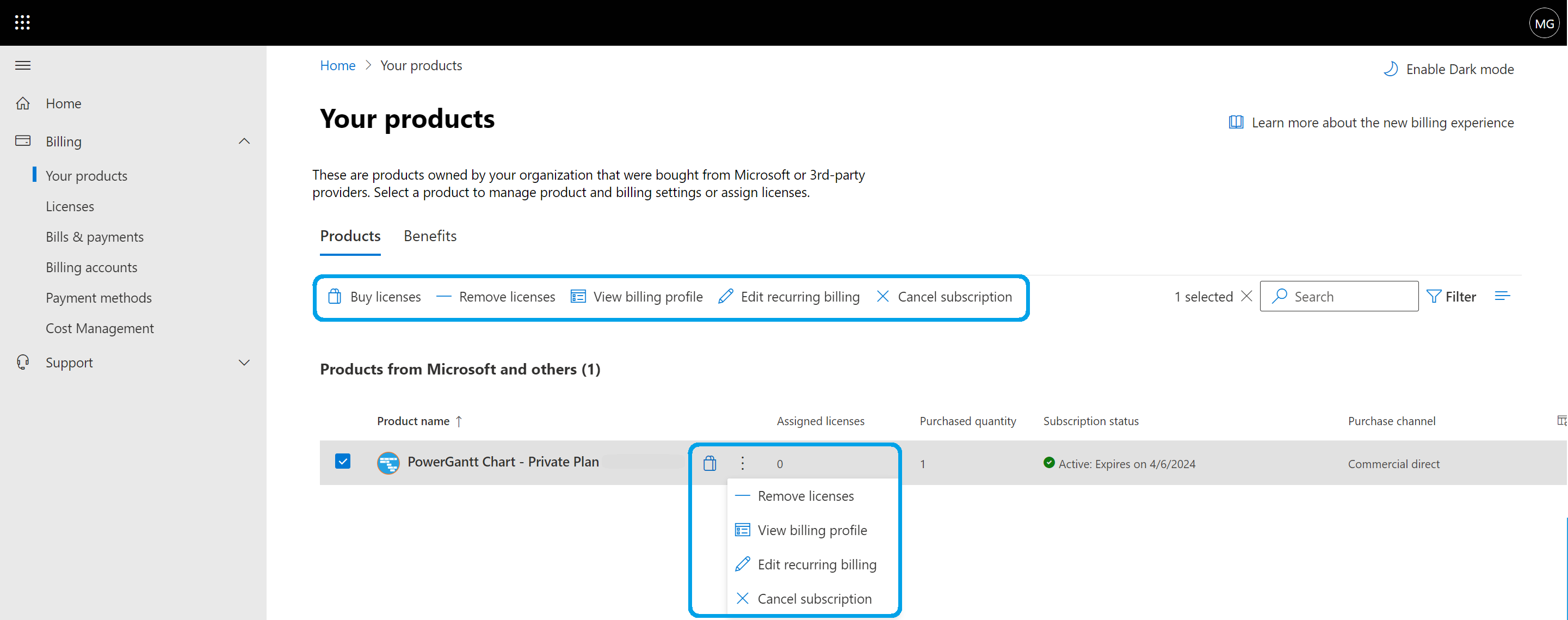
As a billing or global admin, you can see all subscriptions in the Microsoft 365 admin center, and you can cancel them.
In the admin center, go to Billing > Your products
Find and check the visual you want to manage
Click Cancel subscription
You’re eligible for a full refund if you cancel your subscription within seven days of purchase. Refunds aren’t available for subscriptions canceled after that time period. PER USER license purchases and refunds are handled by Microsoft and not by Nova Silva.
For help managing licenses, contact support or click the Help & Support option on the bottom right section of your screen. If you raise a support ticket provide the Subscription ID.
Please note that any changes you make may take up to one hour to process.
Considerations and limitations
Currently, the following Power BI environments don’t support PER USER license management or license enforcement:
- Publish to web (P2W)
- Sovereign or government clouds
- RS (report server) – no Microsoft Entra ID
- PaaS Power BI embedded App owns data
- Exporting (PDF\PPT) using REST API
For unsupported environments you need a PREMIUM license, this can be purchased from our webshop.